MicroPython_tutorial
What is MicroPython?
MicroPython is a full implementation of the Python 3 programming language that runs directly on embedded hardware like Raspberry Pi Pico. You get an interactive prompt (the REPL) to execute commands immediately via USB Serial, and a built-in filesystem. The Pico port of MicroPython includes modules for accessing low-level chip-specific hardware.
Resources (Option):
The MicroPython Wiki
Basic tutorial kit for MicroPython: Link
Prepared knowledge
Pico and Thonny basics (Important):
If you don’t have Pico and Thonny basics, you can follow the link to learn the basics:
Learn about Pico briefly.
Learn about (Option):
MicroPython for Pico.
Upload code to Pico
Tools:
PC(Win10 or uper)
Micro USB cable
Download code:
Please download the code on Github:
https://github.com/Mosiwi/Mosiwi-space-station-kit-for-pico

Unzip the file downloaded above, and the file in the “MicroPython” folder is the code.

Upload module and main code:
Make sure your Raspberry PI Pico’s USB is plugged into your computer’s USB via a usb cable, then click on “Python” and the version number in the bottom right corner of the Thonny window, then select “MicroPython(Raspberry PI Pico)”. COMx “.

Make sure Thonny checked “View -> Files”:

Select “Mosiwi_lib_examples” folder:

Then right-click and select the “Upload to/” menu to upload the code to Pico:

Follow the same method to upload the “main.py” file to Pico:

Tip
If you save a file to the Pico and give it the special name main.py, then MicroPython starts running that script as soon as power is supplied to Raspberry Pi Pico in the future.
Assembly
Note
You must follow the previous step to upload the code before you can install!
Please refer to: Assembly
Control space station
The previous steps have uploaded the code of the space station to Pico. After the space station is installed, the space station can be controlled by the infrared remote control, as follows:
Function of the key:
1 |
2 |
3 |
|---|---|---|
LED switch |
Buzzer switch |
Laser switch |
5 |
8 |
0 |
door switch |
Displays battery power |
Display light value |
▲ |
▼ |
◀ |
Solar panels turn backwards |
Solar panels turn forward |
Space station turns left |
▶ |
OK |
|
Space station turns right |
Mode switch |
Remote mode: The space station is controlled by infrared remote control.
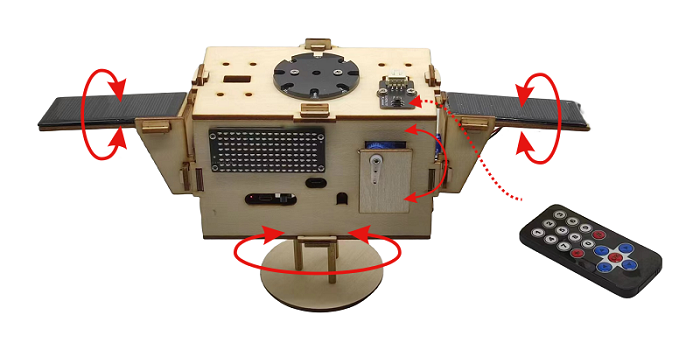
Auto mode: The space station automatically tracks the direction of the light and uses the brightness of the light to control the LED.

End!